Fastest for most Windows installs
Windows EXE (MSI)
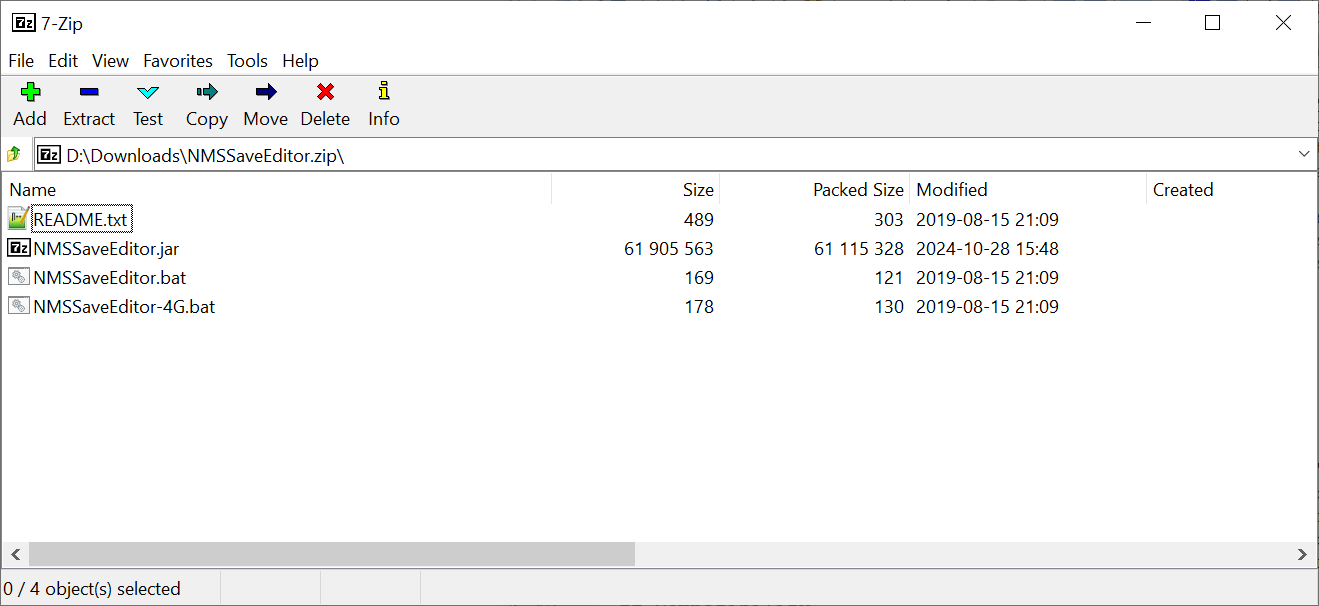
This is the shortest path for a standard Windows install. Extract it to an empty folder, then run the included EXE or MSI file.
Download Windows archiveDownload & Install
Download the build that matches your setup, extract it properly, run the included EXE or MSI on Windows, then open the right save and test one small change first.
Download options
For most Windows installs, the archive with the included EXE or MSI is the fastest option. The second card is for the JAR build if you need the cross-platform route.
This is the shortest path for a standard Windows install. Extract it to an empty folder, then run the included EXE or MSI file.
Download Windows archiveThe JAR is the clean route for Mac, Steam Deck and other Java-based setups.
Download JARRequirements
Have the correct save folder ready, use Java for the JAR build, use Save Wizard for PS4, and keep a backup before deep edits.
The editor works on save data, not on cloud myths. Start from the exact save you want to change and keep a clean rollback path.
Java 8 remains the visible requirement for the JAR workflow and for cross-platform setups where the Windows wrapper is not the right path.
PS4 editing is a separate workflow. Treat it as its own route instead of assuming it behaves like a normal PC install.
Even a simple edit is better when you check it in game before stacking more changes on top.
Install steps
Windows, Mac, Steam Deck and PS4 do not follow the same setup path. Pick your platform and use the short checklist below.
For most Windows installations, this is the fastest route. Depending on the update, the extracted folder can include an EXE or an MSI installer.
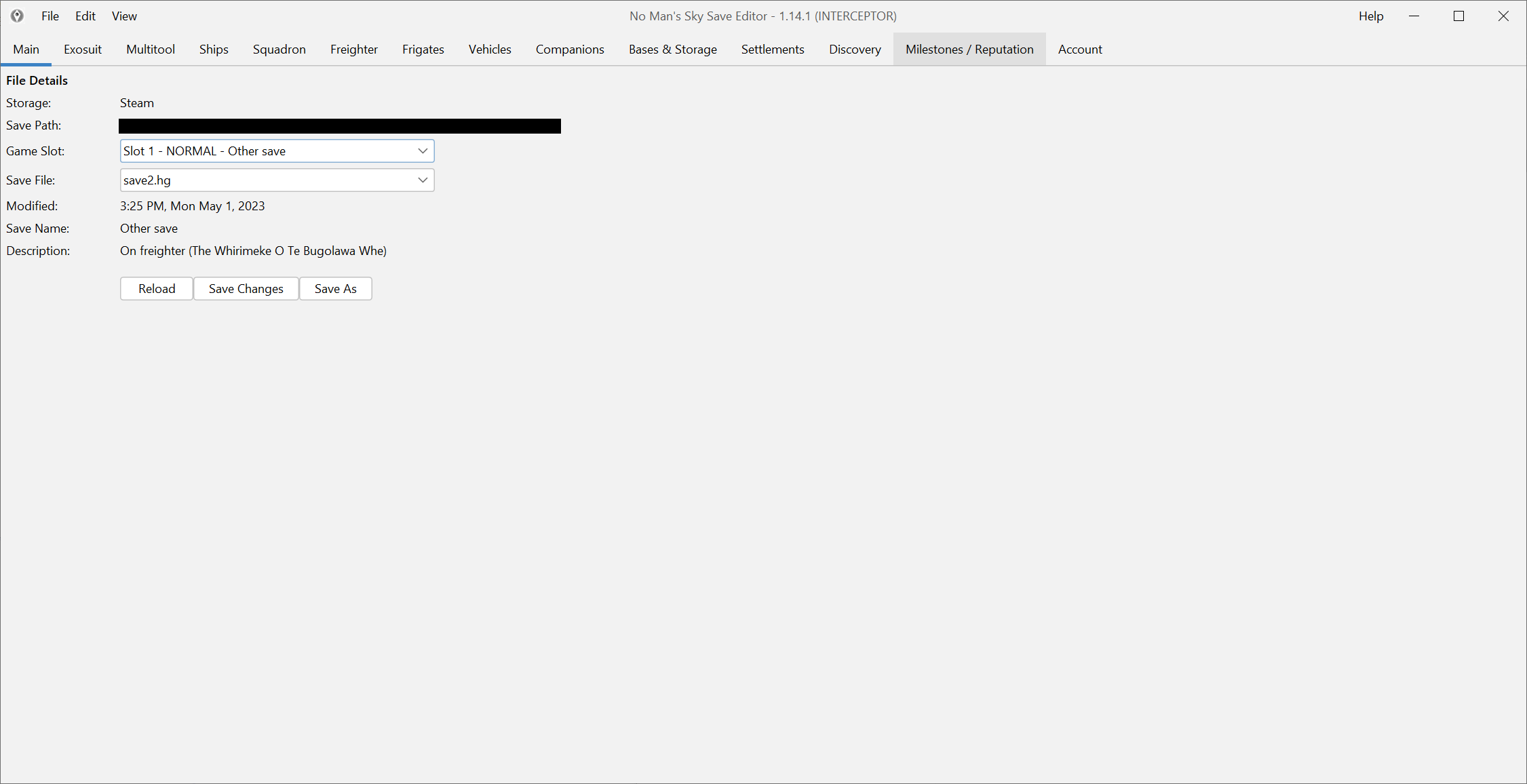
On Mac, start with the JAR. Put it in an easy-to-find folder and verify Java before you troubleshoot anything else.
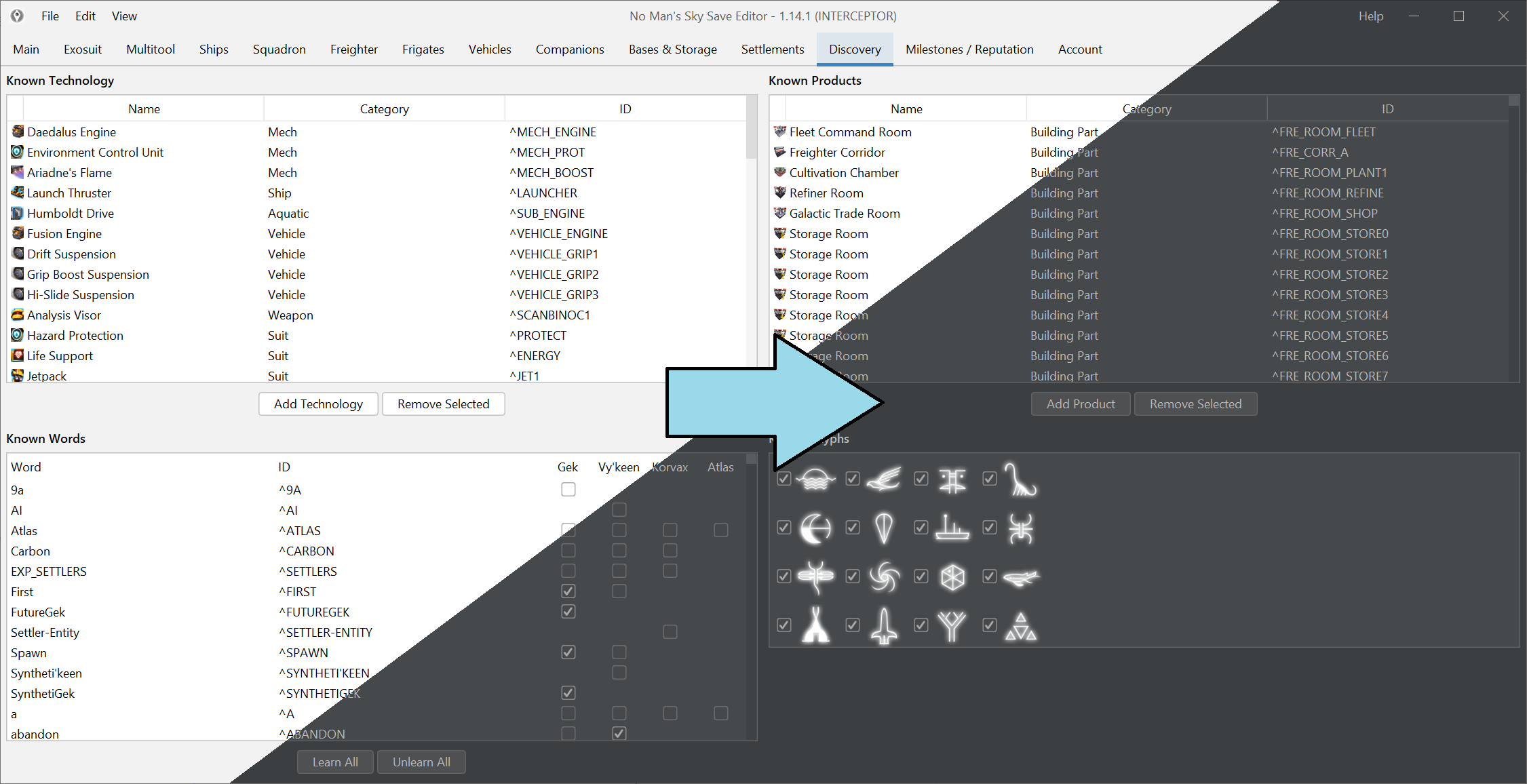
Desktop Mode is the normal setup path here. It keeps file browsing, Java launches and save-path troubleshooting much more predictable.
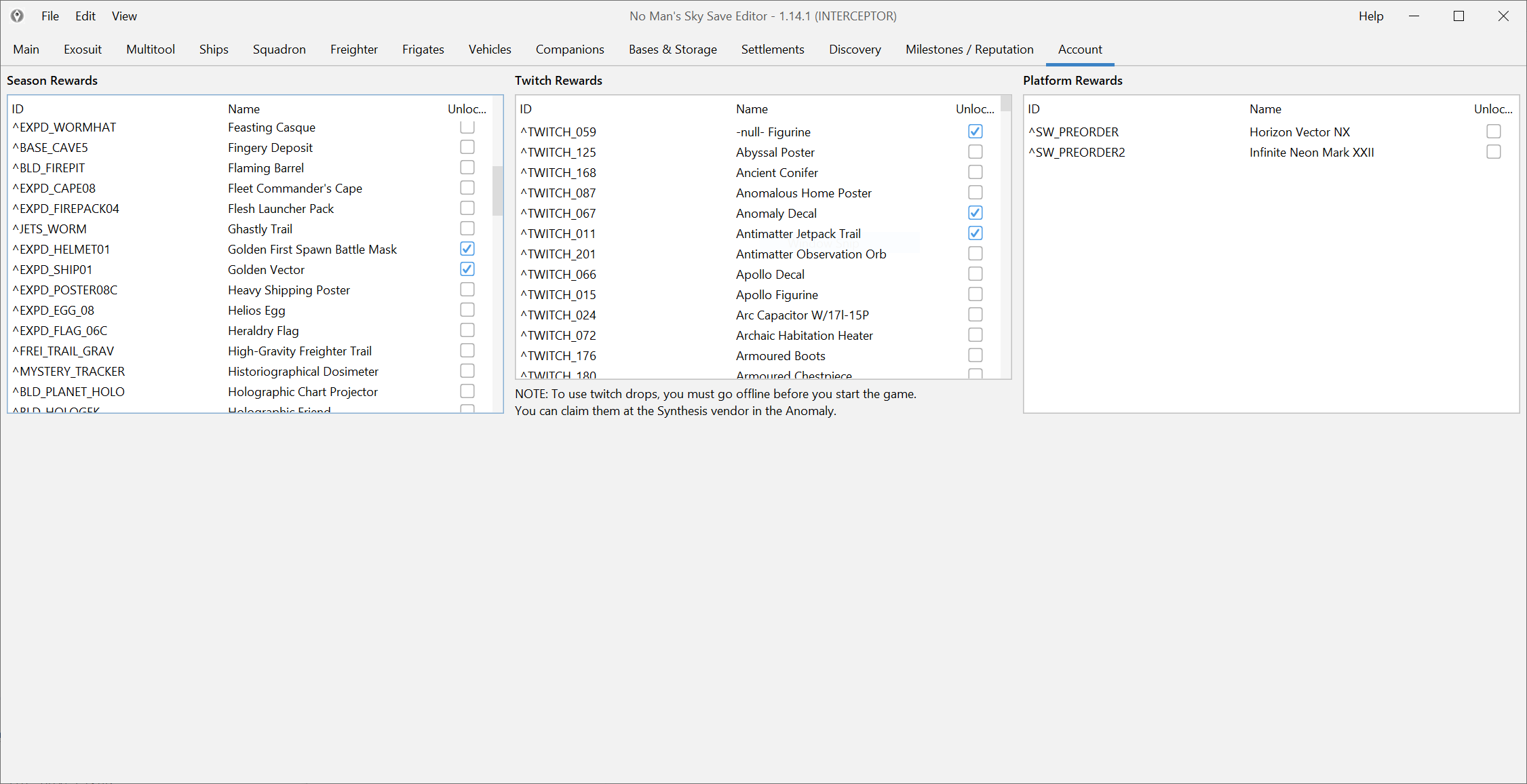
PS4 editing uses Save Wizard and follows its own transfer workflow.
Some antivirus programs flag EXE or MSI files as suspicious. If that happens, turn off Windows Defender or your antivirus and download the archive again. If you do not want to use compiled files, download the source code from GitHub and build it yourself.
Save file locations
Save location is the most common setup problem, especially on Game Pass and Steam Deck.
| Platform | Save path | Notes |
|---|---|---|
| Windows / Steam or GOG | %AppData%\HelloGames\NMS | This is the normal PC starting point. From there, use the editor to pick the most recent save. |
| Windows / Game Pass | %LocalAppData%\Packages\HelloGames.NoMansSky_bs190hzg1sesy\SystemAppData\wgs | Some newer installs also show an xgs folder, so treat Game Pass save detection as version-sensitive. |
| Mac | ~/Library/Application Support/HelloGames/NMS | If the JAR launches but you still cannot open a save, verify both the folder and your Java runtime first. |
| Steam Deck / Linux | ~/.steam/steam/steamapps/compatdata/275850/pfx/drive_c/users/steamuser/AppData/Roaming/HelloGames/NMS | Desktop Mode keeps this route easier to inspect and copy correctly. |
Common install problems
These are the problems that show up most often during the first launch.
If Windows Defender or another antivirus blocks the archive, turn it off temporarily, download the archive again, then run the included EXE or MSI.
Open the Defender stepsThis is especially common with Game Pass or when the wrong folder level is selected first.
Find your save filesThe JAR path depends on Java 8. Fix the runtime before you blame the editor itself.
Check the Java requirementMac and Steam Deck have their own setup steps. Open the platform guides if the default Windows flow does not apply.
Open platform guidesCheck that you edited the correct save, saved the file, and are not arriving right after a game update that changed the underlying data.
Check compatibility statusStart with the least invasive repair path, and only move to raw JSON or deep edits when a normal screen is not enough.
Fix common save issues